
Home Page
The home page is usually the first page users will see upon arriving at your CalmView site. For that reason, it is designed to be very image-heavy. Behind the quick search that appears in the centre of the screen is a large banner image that can be customised. As part of the quick search box, a series of popular searches are listed, which can suggest possible searches to visitors. Just below that is a rotating 'carousel' of multiple images which can also be configured. Further down the page, a showcase of records you wish to highlight can appear and an embedded video, from a site like YouTube, can appear. These are all configured in CalmViewRefreshConfig.xml, a file in the \CalmView\Configuration folder.
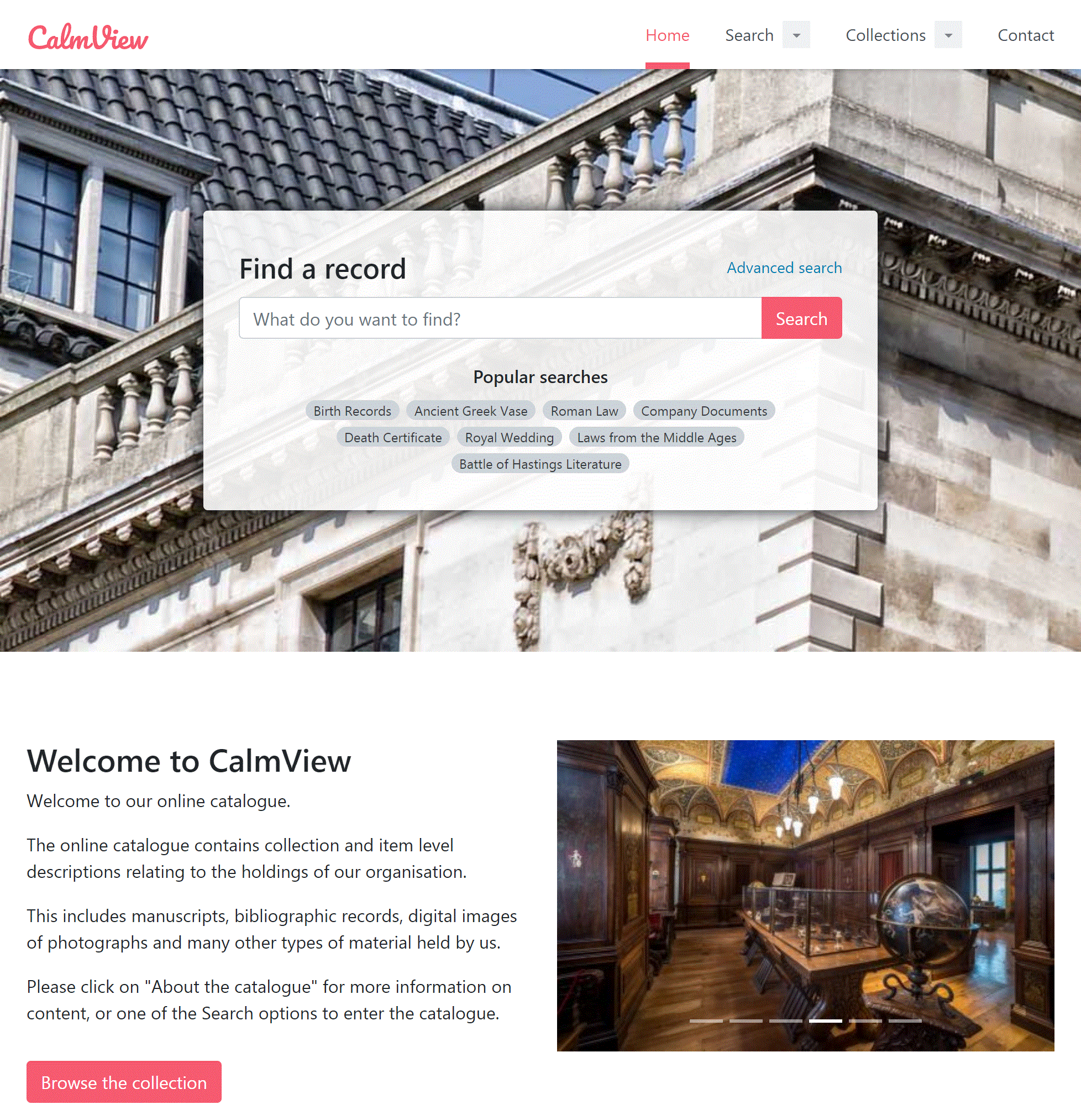
Banner image
The code for the banner is in the ImagesCollection section. The home page shown above is configured as follows:
<ImagesCollection>
<Images>
<Image type="banner" source="bank-of-england.jpg" altText="The building of the Bank of England"/>
<Image type="logo" source="brand-logo.svg" altText="CalmView"/>
</Images>
</ImagesCollection>
To add a banner, the Image element must have the 'type' attribute 'banner'. 'source' points at the file and by default looks in the \CalmView\images folder. Popular file formats such as jpg, png, or gif are accepted. 'altText' is included for users accessing the site from a screen reader or other device and is usually used to explain the image.
Popular searches
The popular searches section is displayed just below the search bar and allows you to suggest searches to visitors. The code for it is in the SearchTermsCollection section. The home page shown above is configured as follows:
<SearchTermsCollection>
<SearchTerms>
<SearchTerm text="Birth Records"/>
<SearchTerm text="Ancient Greek Vase"/>
<SearchTerm text="Roman Law"/>
<SearchTerm text="Company Documents"/>
<SearchTerm text="Death Certificate"/>
<SearchTerm text="Royal Wedding"/>
<SearchTerm text="Laws from the Middle Ages"/>
<SearchTerm text="Battle of Hastings Literature"/>
</SearchTerms>
</SearchTermsCollection>
You can have as many popular searches as you would like listed on the home page, but be mindful of how much space they will take up. To add a new popular search, add a new SearchTerm element line to the list, and to remove a popular search, remove its SearchTerm element line from the list.
The content after 'text' is what is displayed on the home page for the user to click. It also is what the popular search searches for: when clicked, CalmView acts as if a user had typed this text into the quick search on the home page. Remember when editing searches that Calm search is case-insensitive, so the capitalisation you choose to use here will not affect the search results.
Carousel images
The code for carousel images is in the CarouselImagesCollection section. The home page shown above is configured as follows:
<CarouselImagesCollection>
<CarouselImages>
<CarouselImage source="63251sg4g.jpg" altText="The reading room of the archive"/>
<CarouselImage source="55af3ac83.jpg" altText="An archival box being retrieved from a shelf"/>
<CarouselImage source="35467ey65.jpg" altText="A request slip being filled out"/>
<CarouselImage source="3twt52355.jpg" altText="The archive's original map room"/>
<CarouselImage source="6y6566y45.jpg" altText="Archival boxes being transported by cart"/>
<CarouselImage source="5567i5465.jpg" altText="The exterior of the archive building"/>
</CarouselImages>
</CarouselImagesCollection>
For an image to appear in the carousel, there must be a CarouselImage element for it. It is possible to add any number of images, but Axiell recommends no more than 6-8. 'source' points at the file name and by default looks in the \CalmView\images folder. Popular file formats such as jpg, png, or gif are accepted. All the images will be scaled to a common width, which will vary depending on the size of the window or screen it is viewed on, but their aspect ratio will be preserved. This means if the images have different proportions, the carousel will vary in height for each image, which can look untidy. 'altText' is included for users accessing the site from a screen reader or other device and is usually used to explain the image.
The text beside the carousel images is configured in Homepage.
What's New showcase
The What's New showcase pulls through a random selection of records from the Record Showcase and displays them on the front page, as shown. It is configured in two places in CalmViewRefreshConfig.xml.
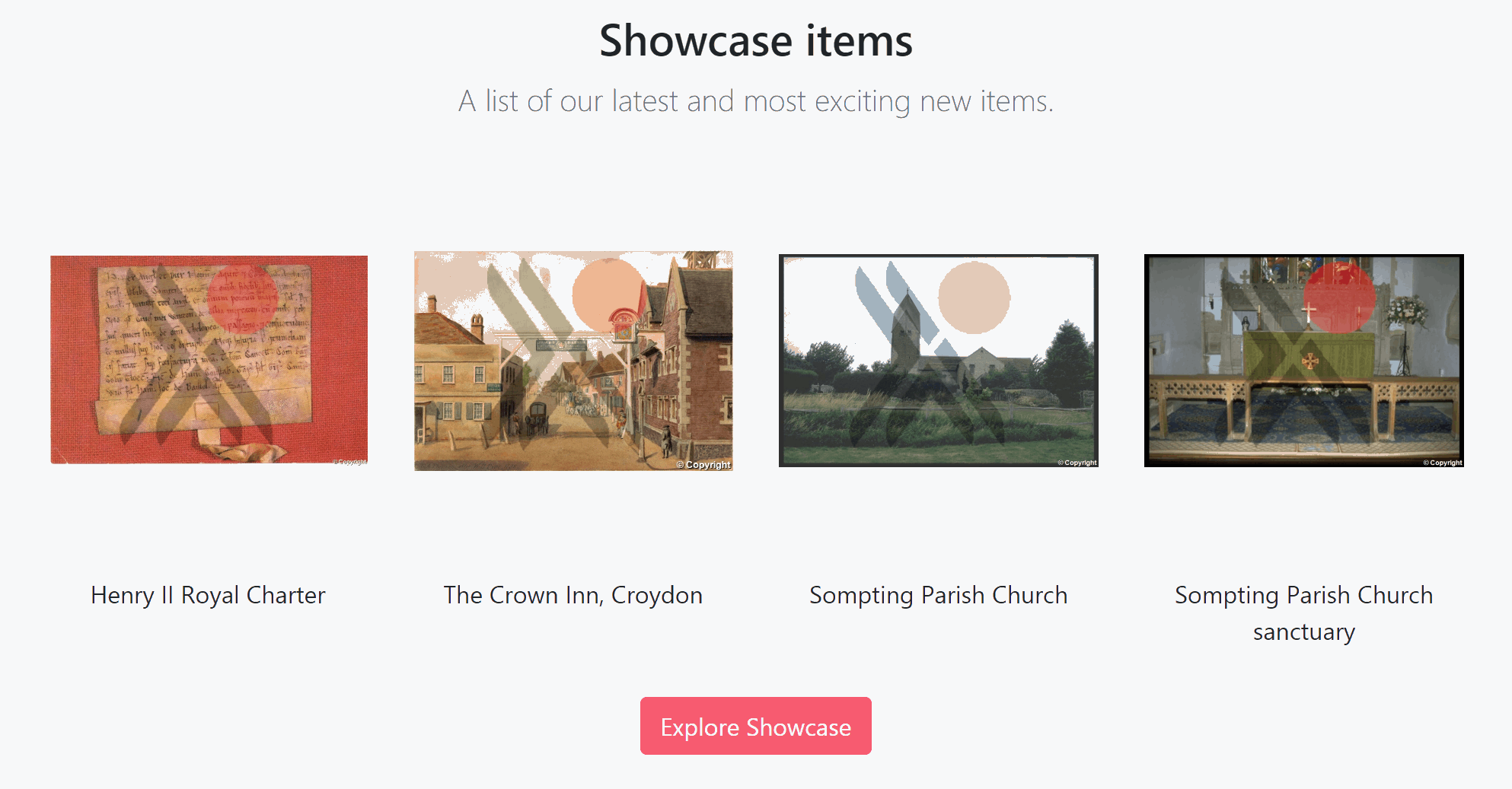
Activating the showcase
The code to activate/deactivate the What's New showcase is in the SectionsCollection section. The showcase shown above is configured as follows:
<SectionsCollection>
<Sections>
<Section name="ShowcaseItem" enabled="true"/>
<Section name="WhatsNew" enabled="true" maxItems="4"/>
<Section name="UsefulLinks" enabled="true"/>
<Section name="InstagramCard" enabled="true"/>
<Section name="TwitterCard" enabled="true"/>
<Section name="Youtube" enabled="true"/>
<Section name="SocialContent" enabled="true"/>
</Sections>
</SectionsCollection>
The 'Section' element with name 'WhatsNew' controls the What's New showcase. To turn it on and off on the home page, change enabled to 'true' or 'false' (setting it to false does not hide the Showcase elsewhere on your CalmView site). To change the number of objects shown on the home page, change the maxItems number from 4 to your preferred number.
Showcase texts
It is possible to edit the text in the title and subtitle shown above the showcase, as well as the button that links the user to the full showcase. The code to edit these is in the StandardTextCollection section. The showcase shown above is configured as follows:
<StandardTextCollection>
<StandardTexts>
<StandardText text="Showcase items" id="whatsNewTitle"/>
<StandardText text="A list of our latest and most exciting new items." id="whatNewSummaryText"/>
<StandardText text="Explore Showcase" id="whatNewButton"/>
<StandardText text="All content copyright of the archive" id="globalFooterText"/>
<StandardText text="Digital Assets at the Archive" id="socialHeader"/>
<StandardText text="What are we doing with our digital assets?" id="socialLeadText"/>
<StandardText text="The archive holds many digital assets, including scans of photographs, digitised films, and born-digital content from contemporary creators. How are we managing this and what can you do with it? Find out here." id="socialText"/>
</StandardTexts>
</StandardTextCollection>
Three StandardText elements control the What's New showcase. To change the title, edit the text attribute in the line with id 'whatsNewTitle'. To change the subtitle, edit the text attribute in the line with id 'whatNewSummaryText'. To change the text on the button that links to the Showcase page, edit the text attribute in the line with id 'whatNewButton'.
Embedded video
The embedded video section allows you to display an embedded video (generally from YouTube, although it is possible to use other sites) and some explanatory text on the home page, as shown. It is configured in three places in CalmViewRefreshConfig.xml.

Activating embedded video
The code to activate/deactivate the embedded video section is in the SectionsCollection section. The section shown above is configured as follows:
<SectionsCollection>
<Sections>
<Section name="ShowcaseItem" enabled="true"/>
<Section name="WhatsNew" enabled="true" maxItems="4"/>
<Section name="UsefulLinks" enabled="true"/>
<Section name="InstagramCard" enabled="true"/>
<Section name="TwitterCard" enabled="true"/>
<Section name="Youtube" enabled="true"/>
<Section name="SocialContent" enabled="true"/>
</Sections>
</SectionsCollection>
The 'Section' elements with name 'Youtube' and 'SocialContent' control embedded video. To turn the entire section on and off on the home page, change enabled to 'true' or 'false' beside 'SocialContent'. To turn just the video on or off (and leave the text visible), change enabled to 'true' or 'false' beside 'Youtube'.
Link to video
The code to link to the video you would like to embed is in the MediaSourceCollection section. The section shown above is configured as follows:
<MediaSourceCollection>
<Mediasources>
<MediaSource name="Youtube" source="https://www.youtube.com/embed/Bo_30a9_JLc"/>
<MediaSource name="Twitter" source="https://twitter.com/axiellalm"/>
<MediaSource name="Instagram" source="https://www.instagram.com/p/BxjTTlrC_Ra/"/>
<MediaSource name="Facebook" source="https://www.facebook.com/axiellalm/"/>
</Mediasources>
</MediaSourceCollection>
The 'MediaSource' element with the name 'Youtube' controls embedded video. To change the video you are linking to, find the embed URL of the video you wish to link to (on YouTube to find this you generally need to click 'Share' and 'Embed' below the video) and copy just the actual URL (that begins with http), ignoring the rest of the code that comes along with it. Paste that URL in the 'source' section.
Embedded video texts
It is possible to edit the text in the title, subtitle, and description of the embedded video, shown beside it. The code to edit these is in the StandardTextCollection section. The section shown above is configured as follows:
<StandardTextCollection>
<StandardTexts>
<StandardText text="Showcase items" id="whatsNewTitle"/>
<StandardText text="A list of our latest and most exciting new items." id="whatNewSummaryText"/>
<StandardText text="Explore Showcase" id="whatNewButton"/>
<StandardText text="All content copyright of the archive" id="globalFooterText"/>
<StandardText text="Digital Assets at the Archive" id="socialHeader"/>
<StandardText text="What are we doing with our digital assets?" id="socialLeadText"/>
<StandardText text="The archive holds many digital assets, including scans of photographs, digitised films, and born-digital content from contemporary creators. How are we managing this and what can you do with it? Find out here." id="socialText"/>
</StandardTexts>
</StandardTextCollection>
Three StandardText elements control the embedded video section. To change the title, edit the text attribute in the line with id 'socialHeader'. To change the subtitle, edit the text attribute in the line with id 'socialLeadText'. To change the description, edit the text attribute in the line with id 'socialText'.